
Pocket-PGP
Kleopatra → Pocket-PGP
A step-by-step onboarding page for importing your existing OpenPGP keyring from desktop (Kleopatra / GnuPG) into Pocket-PGP.
Goal Export your keys as ASCII-armored .asc → save the file where your iPhone can access it (Files / iCloud Drive / OneDrive) → import via Keys → Import.
Prefer the full handbook (security model, troubleshooting, key admin)? Open the full guide →
1) Export on desktop
You typically want two files:
- Public keys (for encrypt / verify) →
public-keys.asc - Secret keys (required for decrypt / sign) →
private-keys.asc
Option A — Kleopatra (GUI)
In Kleopatra, export your certificates and make sure the output is ASCII armored (.asc).
- Export public certificates →
public-keys.asc - Export secret keys →
private-keys.asc
Option B — Terminal (gpg) (copy/paste)
Works on macOS/Linux and Windows with GnuPG installed (including gpg4win).
Export public keys:
gpg --export --armor > public-keys.ascExport secret keys (needed for decrypt/sign):
gpg --export-secret-keys --armor > private-keys.ascprivate-keys.asc securely and delete it after import if you don’t need it as a backup.2) Move the .asc file(s) to your iPhone
Pocket-PGP can import from the iOS file picker, so you can use whichever path is easiest:
- Save to OneDrive or iCloud Drive
- Copy via USB/AirDrop (macOS)
- Place the files in the iOS Files app
.asc in a safe place. If you ever reset the vault, you can re-import in minutes.3) Import in Pocket-PGP
- Open Keys in Pocket-PGP.
- Tap Import (this opens the iOS file picker).
- Select your
.ascfile(s) from Files / iCloud / OneDrive. - Done — your keyring is now available for Encrypt/Decrypt/Sign.
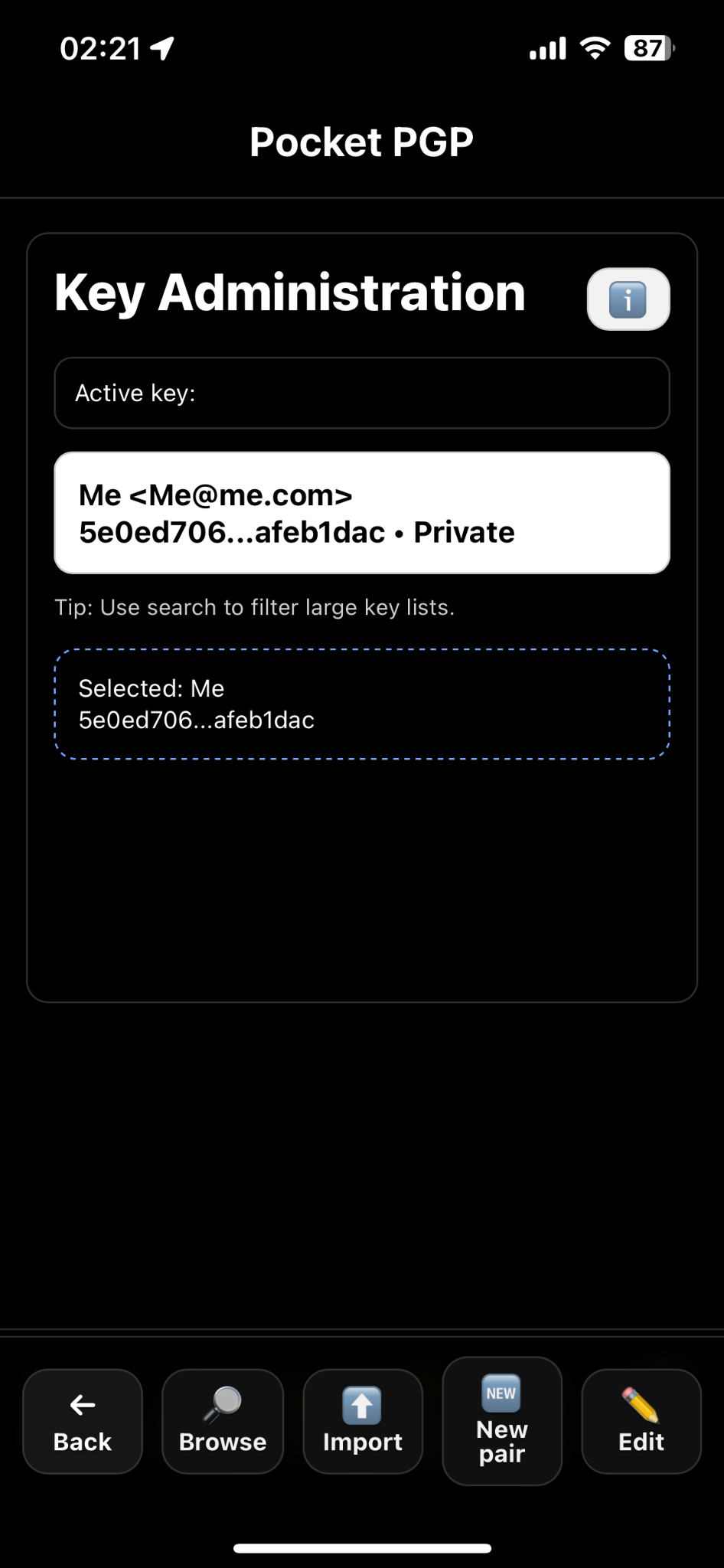
Use Keys → Import to import key files from the iOS file picker.
Encrypt + sign setup
Pocket-PGP includes an Encrypt + sign action. Before using it, select which private key should be your signing key.
One-time setup
- Open Keys.
- Select your private key.
- Tap Edit.
- Set Category to Signing certificate.
- Tap Save.
Quick test
- Paste plaintext in the main input.
- Add yourself as recipient (or use Encrypt for me if available).
- Tap Encrypt + sign.
- Paste the output back and tap Decrypt to verify it round-trips.
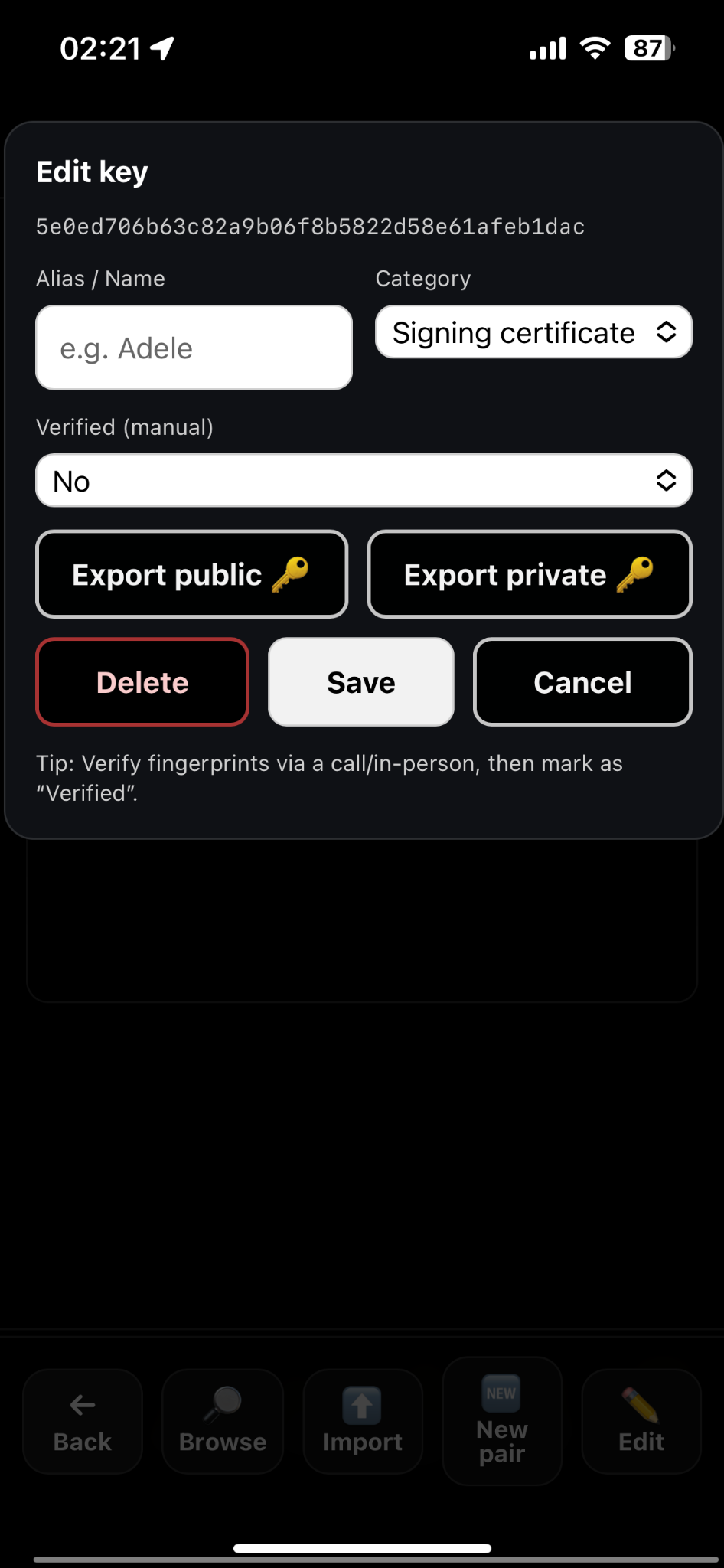
Edit key: set Category to Signing certificate.
Next
- Need the security model, vault/reset explanation, and troubleshooting? Read the full guide →
- Stuck importing? Email support@pocket-pgp.com with a screenshot.
Last updated: 2026-02-02