
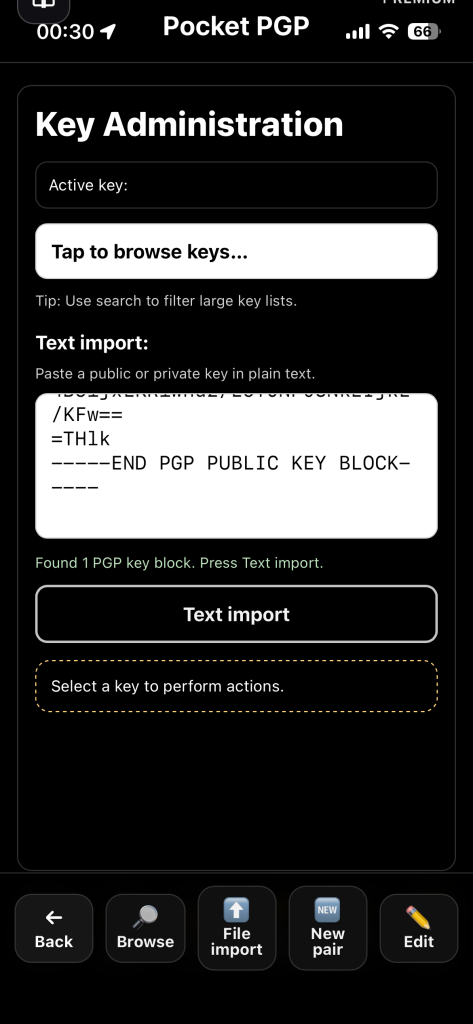
New in version 1.6 is that all key management now takes place on the “Key Administration” page.
To import a key via text, tap “Key” at the bottom right of the main screen. Then paste the key in plain text into the input field. In the hint area below the text input, you will see: “Found 1 PGP key block. Press Text import.”
When you tap “Text import”, a prompt will appear showing the key’s identity and where it was saved. The procedure is the same for both public and private keys.
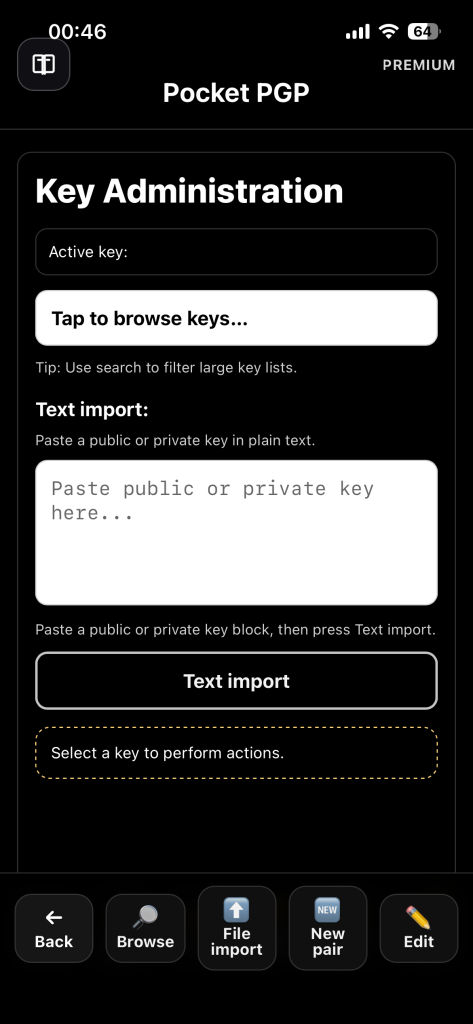
- Export keys from your desktop keyring (Kleopatra or
gpg). - Save the exported
.ascfile somewhere your iPhone can access (iCloud Drive / OneDrive / Files). - On your iPhone, open Keys → File Import and select the
.ascfile.
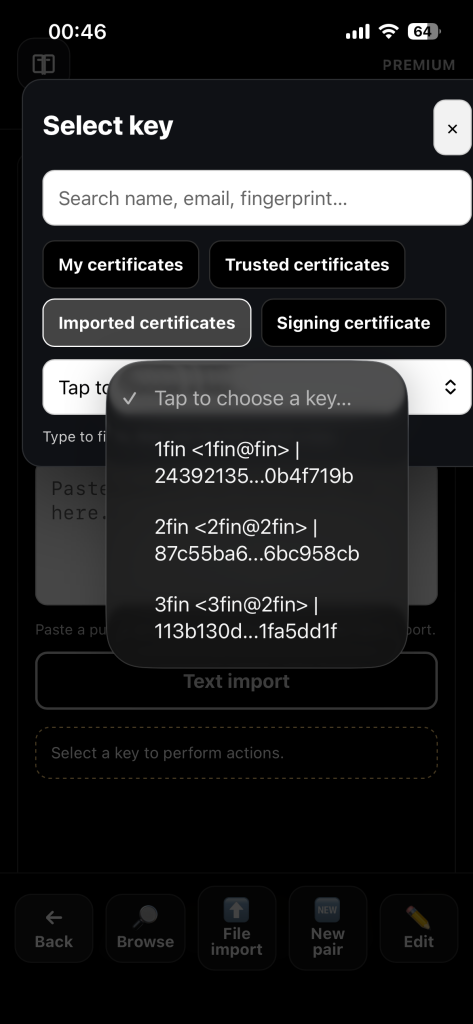
You will not receive a prompt here, but you can verify afterward that the keys you imported appear under “Imported certificates.”
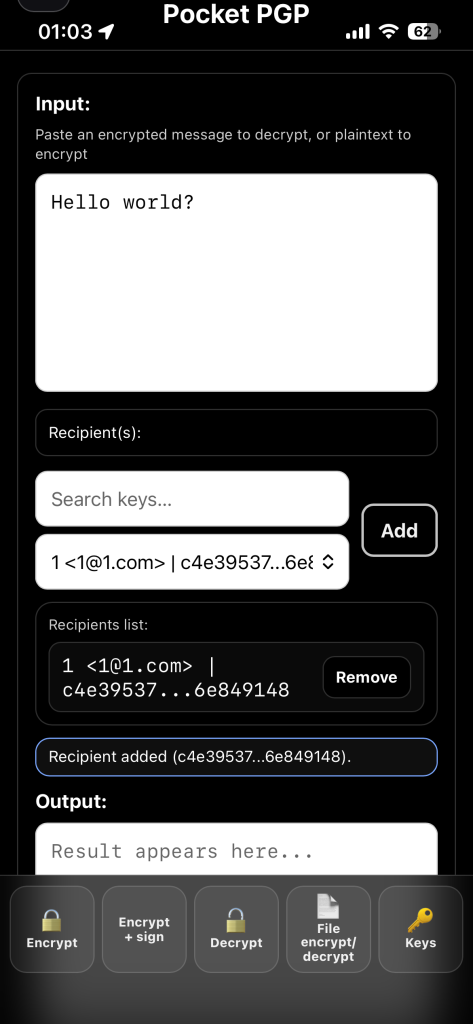
- Paste plaintext in the main input.
- Choose one or more recipients (public keys) and tap Add.
- Tap Encrypt to generate an armored message.
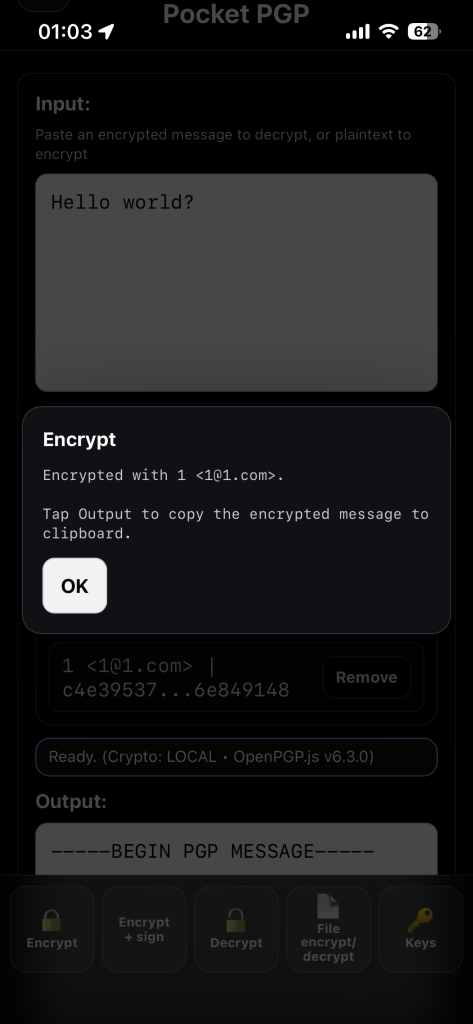
- The encrypted version of the text from the input field can now be found in the output field at the bottom of the page. See prompt.
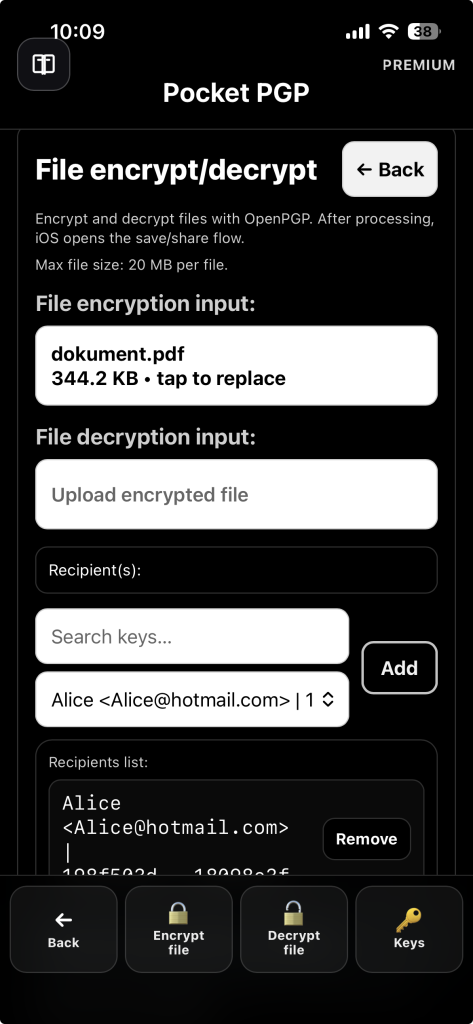
To encrypt a file, select “File encrypt/decrypt” from the main screen.
Tap the “Upload file” field to open the document picker. Then choose a document or image — in practice, almost any file type. The maximum supported file size is 50 MB. Find the recipient’s key and tap “Add”, then tap “Encrypt file”.
When encryption is complete, Apple’s share sheet opens with the available file handling options, such as Save, Messages, AirDrop, and more.
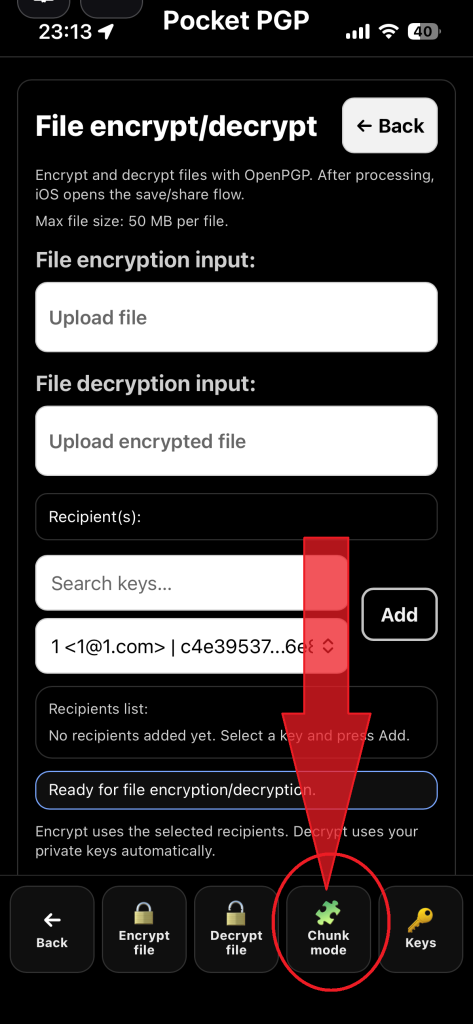
To encrypt a file larger than 50 megabytes, you must select Chunk Mode from the file encryption page. Chunk Mode means that the file is split into multiple manageable chunks. These chunks are encrypted individually and then combined into a package. A manifest is included with the package, specifying the order in which the chunks should be decrypted and reassembled.
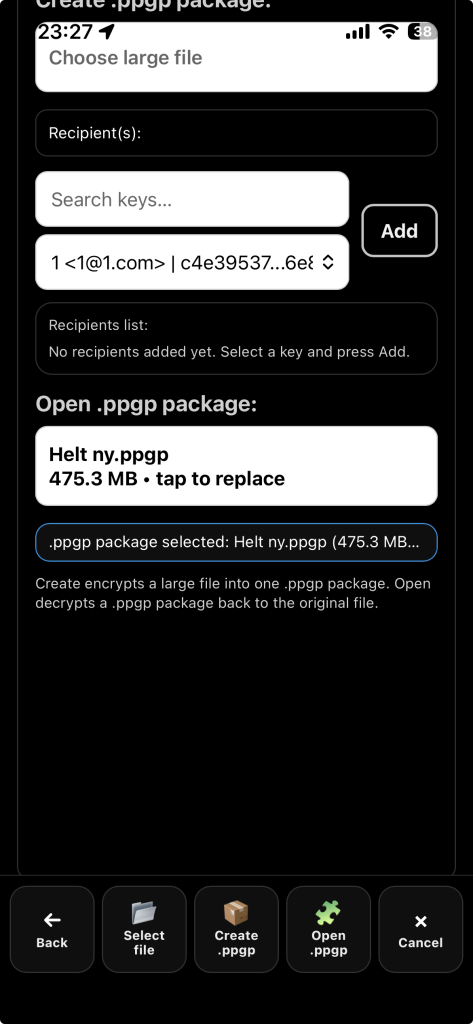
Tap the Chunk Mode button on the file encryption page.
Then select “Select file” or “Choose large file” and locate the file or video you want to encrypt as a .ppgp package. The current maximum size is 500 MB. Once you have selected the file, tap “Create .ppgp” and choose your preferred save location when the share sheet appears. The maximum supported file size is 500 MB. To reverse the process, locate the file again by tapping “Choose .ppgp package”. Then tap “Open .ppgp”.
1. Paste the armored message into the main input.
2. Tap Decrypt.
3. Pocket-PGP automatically matches the required private key from your vault.
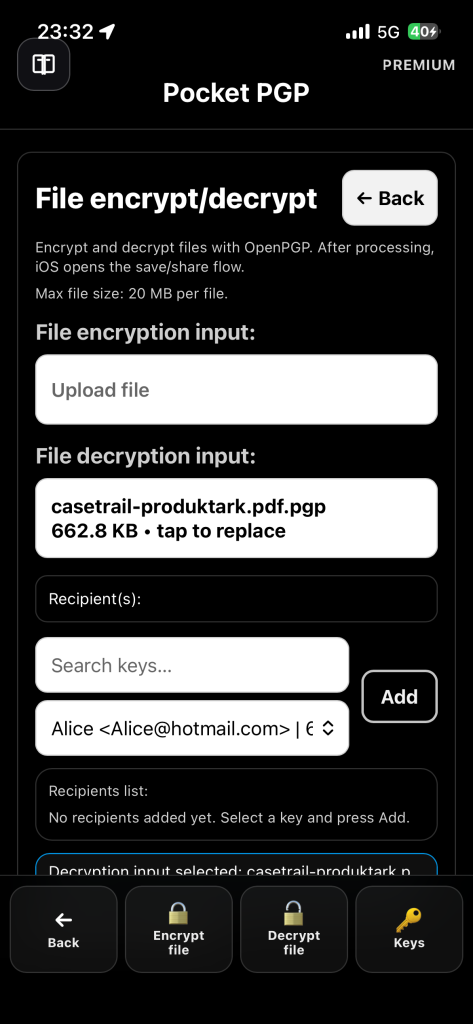
To decrypt a file, tap the “Upload encrypted file” field, browse to the file’s location, and open it. When decryption is complete, choose where to save the decrypted file, or open it directly in a compatible app, such as a browser.
Pocket-PGP has a dedicated Encrypt + sign action. To use it, you must first select which key should be treated as your signing key.
1. Open Keys.
2. Select your private key.
3. Tap Edit.
4. Set Category to Signing certificate.
5. Tap Save.
If you select a key without private key material (a stub/smartcard placeholder), signing will fail. Import a real software secret key or generate a keypair inside Pocket-PGP.
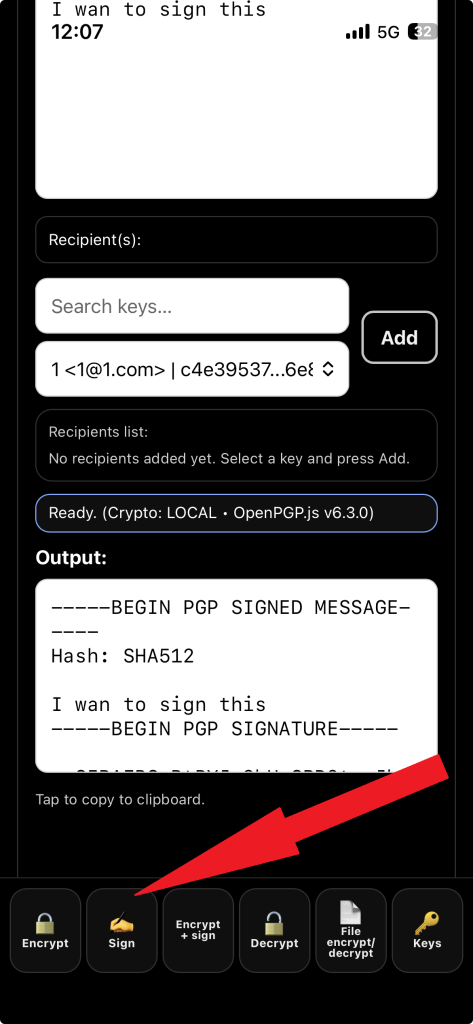
Starting with version 1.7, an option has been added to sign text with your private key without encrypting the entire text. Simply enter the text you want to sign in the input field and press “Sign.” Please note that you must have saved your private key in the “Signing certificate” folder in Key Administration.
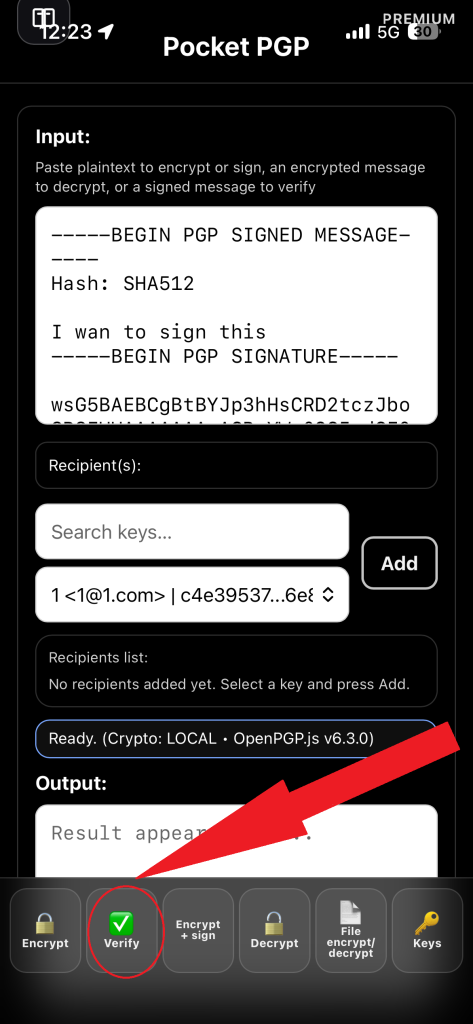
Paste a signed message into the input field, and you will see the “Sign” button at the bottom of the screen change to “Verify.” Press it, and you will get a prompt telling you which key the message was signed with.
From Keys you can:
- Browse and search your keyring
- Import keys from files (
.asc) and plain text.
- Export public / export private keys
- Delete keys
- Generate a new key pair
- Edit metadata (alias/name, category, verified flag)
Offline-first: cryptography runs on-device (no server required).
Encrypted vault: keys are stored encrypted on the device.
iOS Keychain protected master key: the master key can be stored in iOS Keychain protected by Face ID / passcode.
Policy change handling: if Face ID/passcode settings change (or biometrics are re-enrolled), you may be asked to reset the vault to keep protections strong.
Import succeeds but signing fails
You likely imported a stub key (common with smartcard/YubiKey setups). Pocket-PGP needs a software secret key to sign.
Decrypt fails
- Confirm the required private key is present (Keys → Browse).
- Try importing the secret key again (
--export-secret-keys --armor). - Ensure the message is standard OpenPGP armored text.
Locked / cannot open keyring
If Face ID/passcode policy changed, the iOS Keychain item can become unavailable. Use Reset vault (if shown) and re-import keys from your backup .asc.
Need help? Email support@pocket-pgp.com and include screenshots and a short description of what you tried.