
Pocket-PGP
Guide
A practical handbook for Pocket-PGP — with a fast onboarding path for Kleopatra / GnuPG users.
Start here If you already have a desktop keyring, use the dedicated import walkthrough. It’s the fastest way to get Pocket-PGP ready.
This page is the full handbook. For the shortest onboarding, use Kleopatra → Pocket-PGP.
Contents
Get started in 3 minutes Import your keys From Kleopatra (Windows) From terminal (gpg) Encrypt / Decrypt Encrypt + sign Key Administration Security model TroubleshootingGet started in 3 minutes
Fast path Export your keys as an ASCII-armored .asc file on desktop → save it in iCloud Drive / OneDrive / Files → import in Pocket-PGP.
- Export keys from your desktop keyring (Kleopatra or
gpg). - Save the exported
.ascfile somewhere your iPhone can access (iCloud Drive / OneDrive / Files). - On your iPhone, open Keys → Import and select the
.ascfile. - Test: paste an encrypted message and tap Decrypt (or encrypt to yourself).
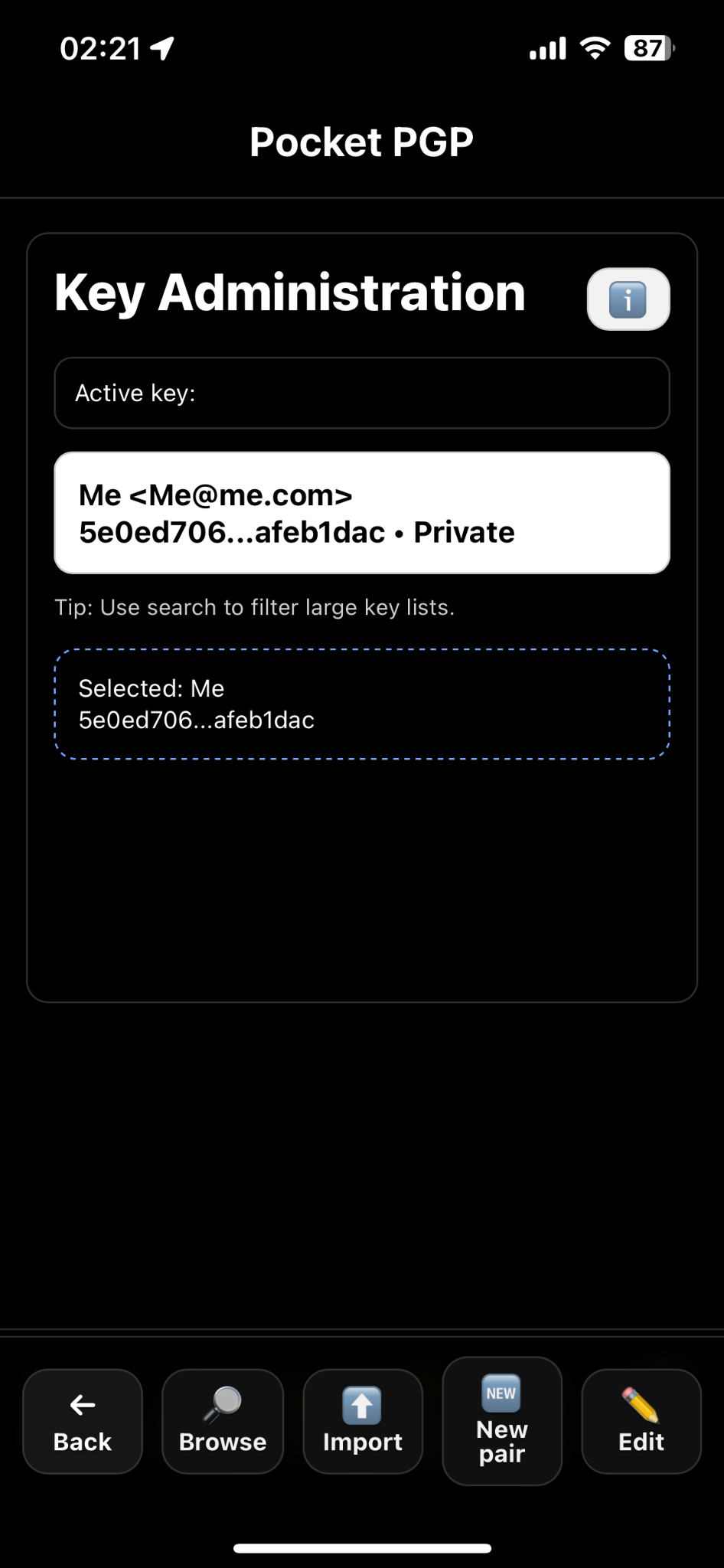
Tip: Use Keys → Import to import from Files / iCloud / OneDrive.
Import your keys
Pocket-PGP supports two import flows. Use the one that matches what you have:
- Main screen → Import: imports the key block you pasted into the input field.
- Keys → Import: opens the iOS file picker to import one or more
.ascfiles from Files / iCloud / OneDrive.
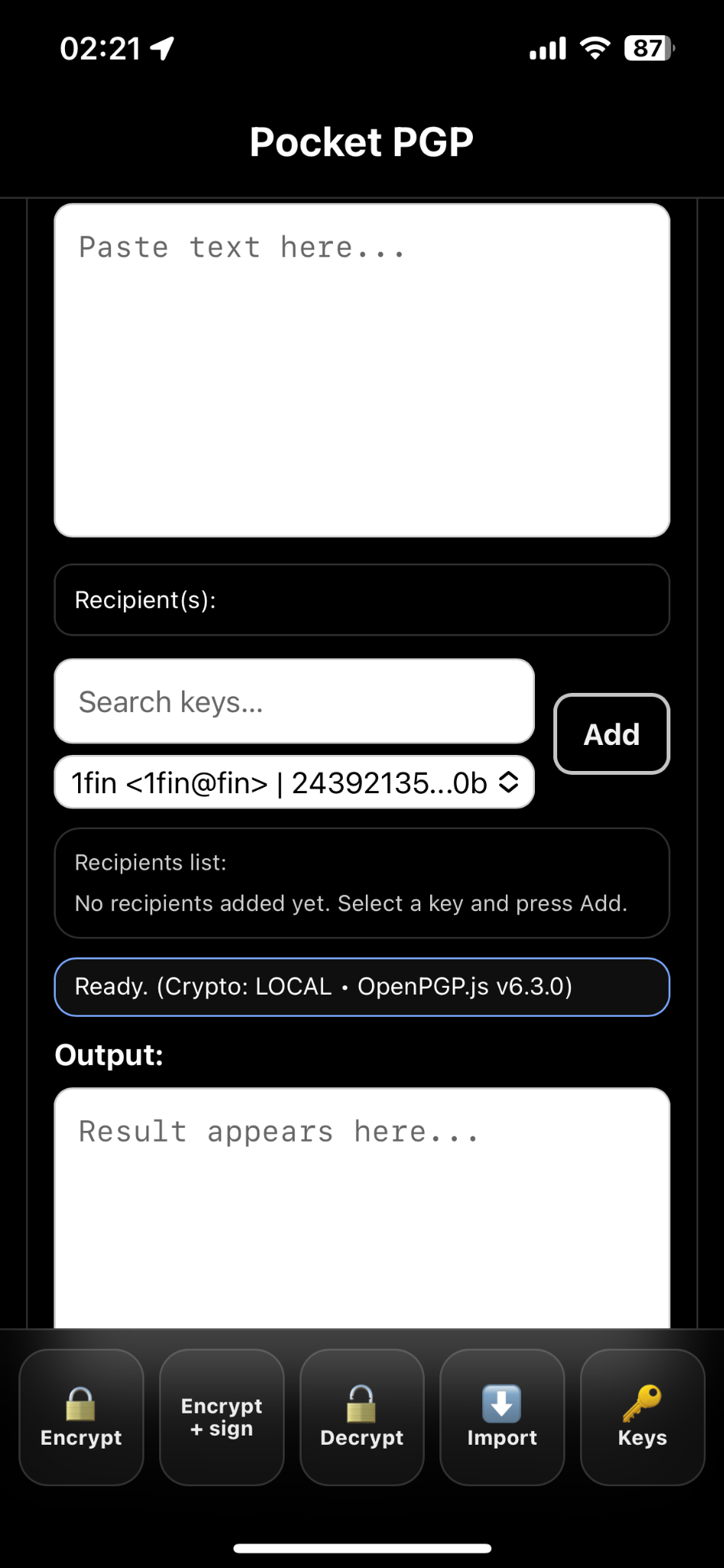
Main screen Import = import the pasted ASCII-armored key block in the input.
Supported formats:
- ASCII-armored
.ascexported from Kleopatra / GnuPG - Public keys and secret keys
- Multiple keys in one file (bulk)
From Kleopatra (Windows)
If you use Kleopatra today, the goal is to export your public keys (for encrypt/verify) and your secret keys (for decrypt/sign) as ASCII-armored .asc.
.asc).
Recommended export set
- Public keys →
public-keys.asc - Secret keys →
private-keys.asc(needed for decrypt + sign)
Then move the file(s) to a place accessible from iPhone (OneDrive/iCloud/Files) and import via Keys → Import.
From terminal (gpg)
These commands work on macOS/Linux, and on Windows if GnuPG is installed. They create ASCII-armored files you can import in Pocket-PGP.
Export public keys
gpg --export --armor > public-keys.ascExport secret keys (required for decrypt/sign)
gpg --export-secret-keys --armor > private-keys.ascOptional: export a specific key only
Replace KEYID_OR_EMAIL with a fingerprint, key ID, or email.
gpg --export --armor KEYID_OR_EMAIL > one-public.asc
gpg --export-secret-keys --armor KEYID_OR_EMAIL > one-private.ascprivate-keys.asc, store it securely and delete it after import if you don’t need it anymore.
Encrypt / Decrypt
Encrypt
- Paste plaintext in the main input.
- Choose one or more recipients (public keys) and tap Add.
- Tap Encrypt to generate an armored message.
Multi-recipient
You can add multiple recipients so more than one person can decrypt the same message.
Encrypt for me
If enabled in your build, Encrypt for me adds your own public key as an extra recipient so you can decrypt your own sent messages later.
Decrypt
- Paste the armored message into the main input.
- Tap Decrypt.
- Pocket-PGP automatically matches the required private key from your vault.
Encrypt + sign
Pocket-PGP has a dedicated Encrypt + sign action. To use it, you must first select which key should be treated as your signing key.
One-time setup: choose your signing key
- Open Keys.
- Select your private key.
- Tap Edit.
- Set Category to Signing certificate.
- Tap Save.
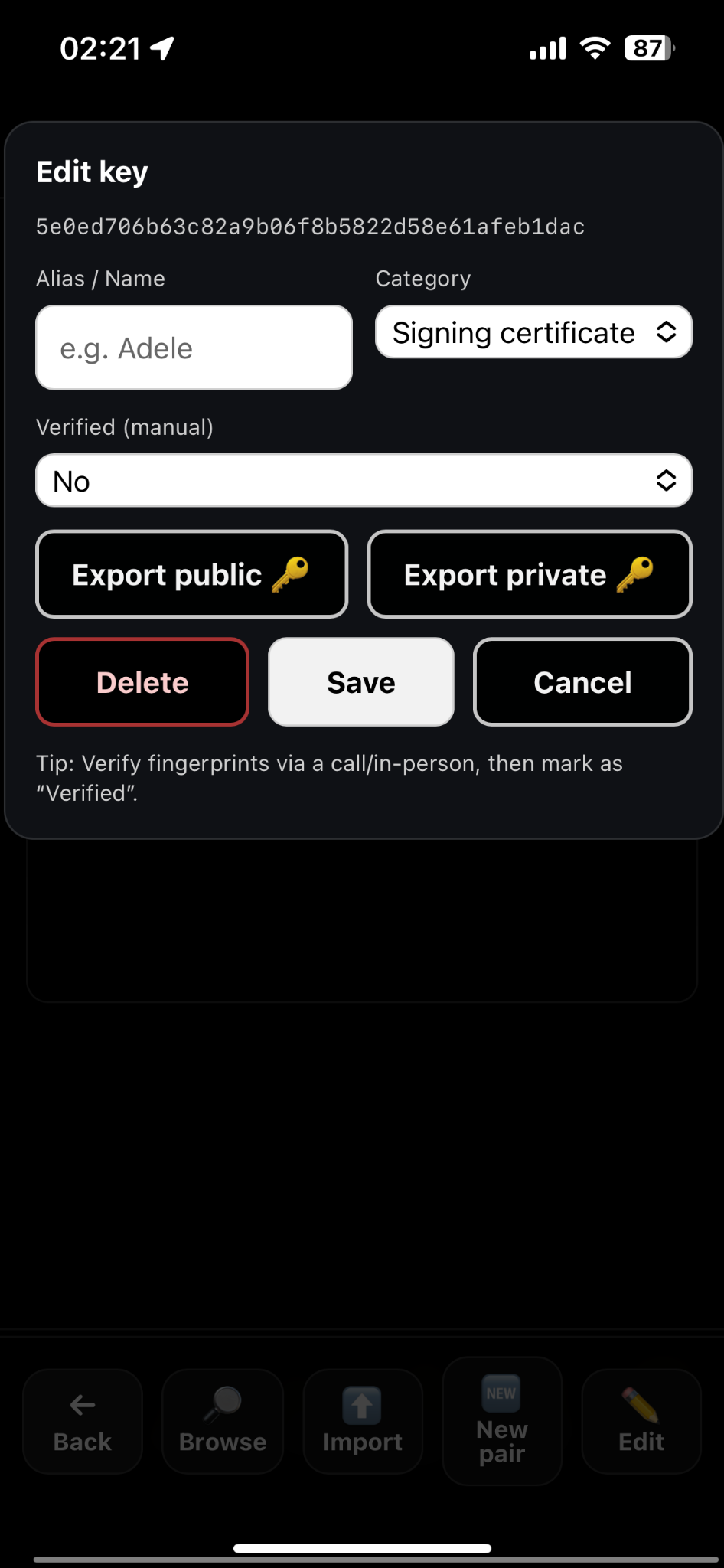
Edit key: set Category to Signing certificate.
Sign + verify
- Signing proves the message came from the holder of the private key.
- Verification requires the sender’s public key to be present in your keyring.
- Best practice: verify the key fingerprint out-of-band (call/in-person), then mark the key as verified.
Key Administration
From Keys you can:
- Browse and search your keyring
- Import keys from files (
.asc) - Export public / export private keys
- Delete keys
- Generate a new key pair
- Edit metadata (alias/name, category, verified flag)
Security model
- Offline-first: cryptography runs on-device (no server required).
- Encrypted vault: keys are stored encrypted on the device.
- iOS Keychain protected master key: the master key can be stored in iOS Keychain protected by Face ID / passcode.
- Policy change handling: if Face ID/passcode settings change (or biometrics are re-enrolled), you may be asked to reset the vault to keep protections strong.
Troubleshooting
Import succeeds but signing fails
You likely imported a stub key (common with smartcard/YubiKey setups). Pocket-PGP needs a software secret key to sign.
Decrypt fails
- Confirm the required private key is present (Keys → Browse).
- Try importing the secret key again (
--export-secret-keys --armor). - Ensure the message is standard OpenPGP armored text.
Locked / cannot open keyring
If Face ID/passcode policy changed, the iOS Keychain item can become unavailable. Use Reset vault (if shown) and re-import keys from your backup .asc.
Need help? Email support@pocket-pgp.com and include screenshots and a short description of what you tried.
Last updated: 2026-02-02